User guide
Everything a parent, family member, child or professional needs to use ParallelPath day to day.
1. Getting your account
You join ParallelPath by invitation: either the other parent invites you to their family account, or the server's administrator sends you a sign-up link.
- Open the link in the email (or the link someone sent you privately). Links expire after 7 days.
- Choose your name (what others see), a username and a password of at least 12 characters - a short sentence is easy to remember and hard to guess.
- Tick that you've read the terms, privacy notice and beta disclaimer, then Accept invitation.
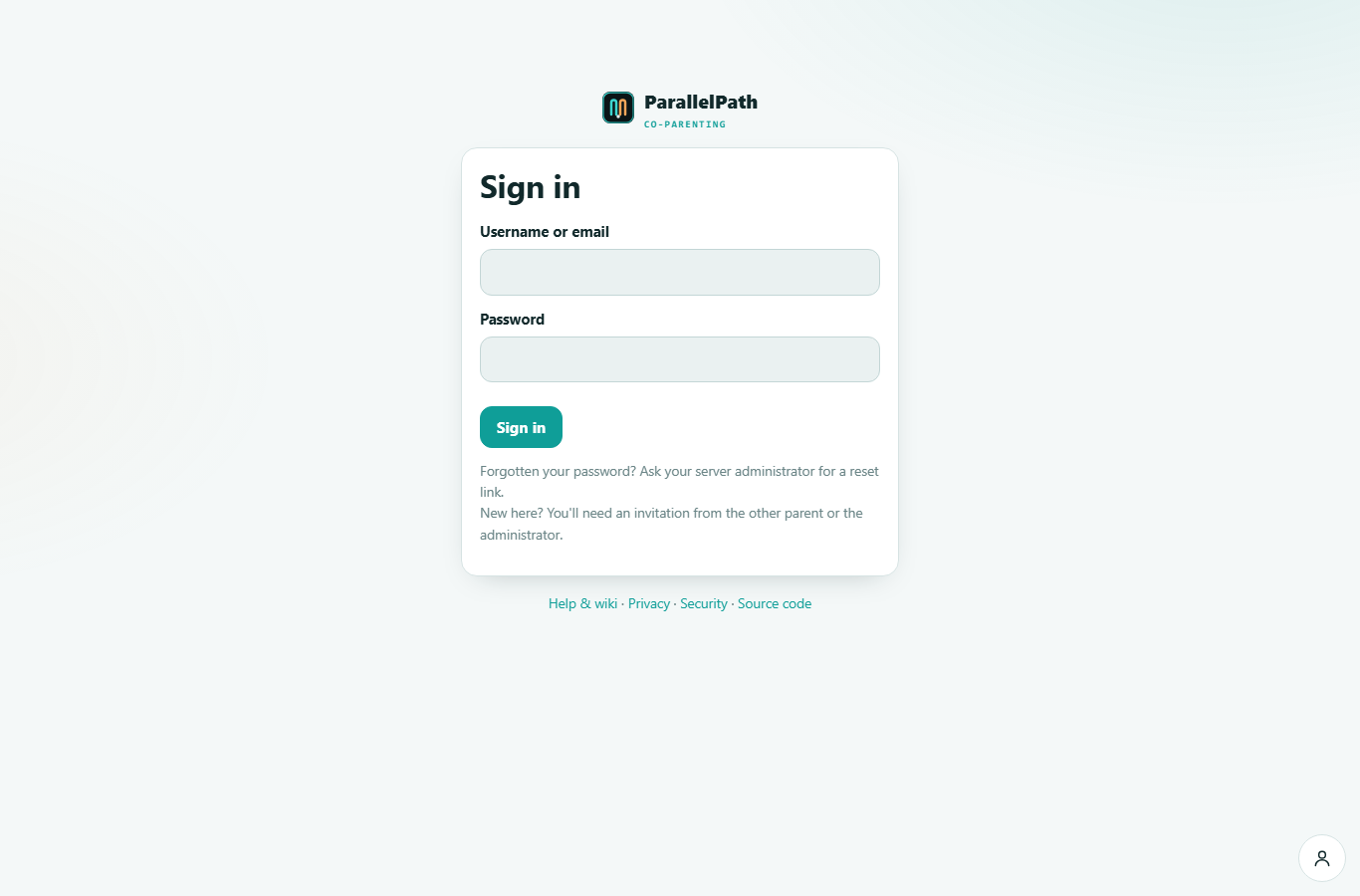 The sign-in page.
Two-step verification
The first time you sign in you'll set up two-step verification (2FA). It keeps your family's records safe even if someone learns your password.
- Install an authenticator app on your phone - for example Aegis, 2FAS, Google Authenticator, Microsoft Authenticator or 1Password.
- Scan the QR code shown on screen (or type the key under it).
- Enter the 6-digit code from the app.
- Save your recovery codes. Each one lets you sign in once if you lose your phone. Print them or keep them in a password manager.
Sessions sign out automatically after 30 minutes of inactivity and after 12 hours at most. You can see and sign out other devices under Account > Signed-in devices.
Setting up the family account
If you're the first parent:
- Choose Create your family account and give it a name (only members see it).
- Go to Family & access and Invite the other parent by email.
- Add your children (name, date of birth, a colour for the calendar).
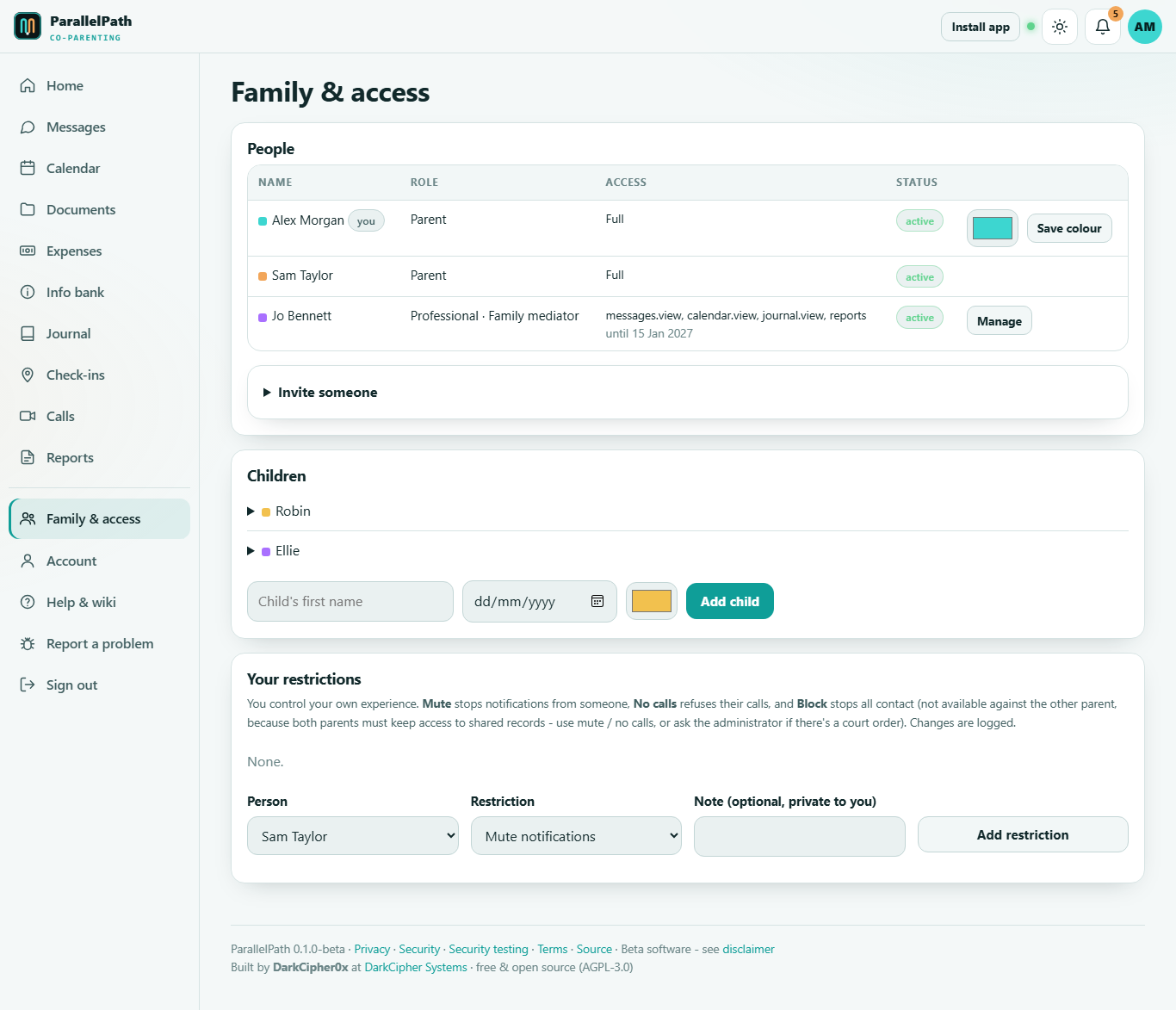 Family & access: people, roles, invitations, children and your own restrictions.
2. The home dashboard
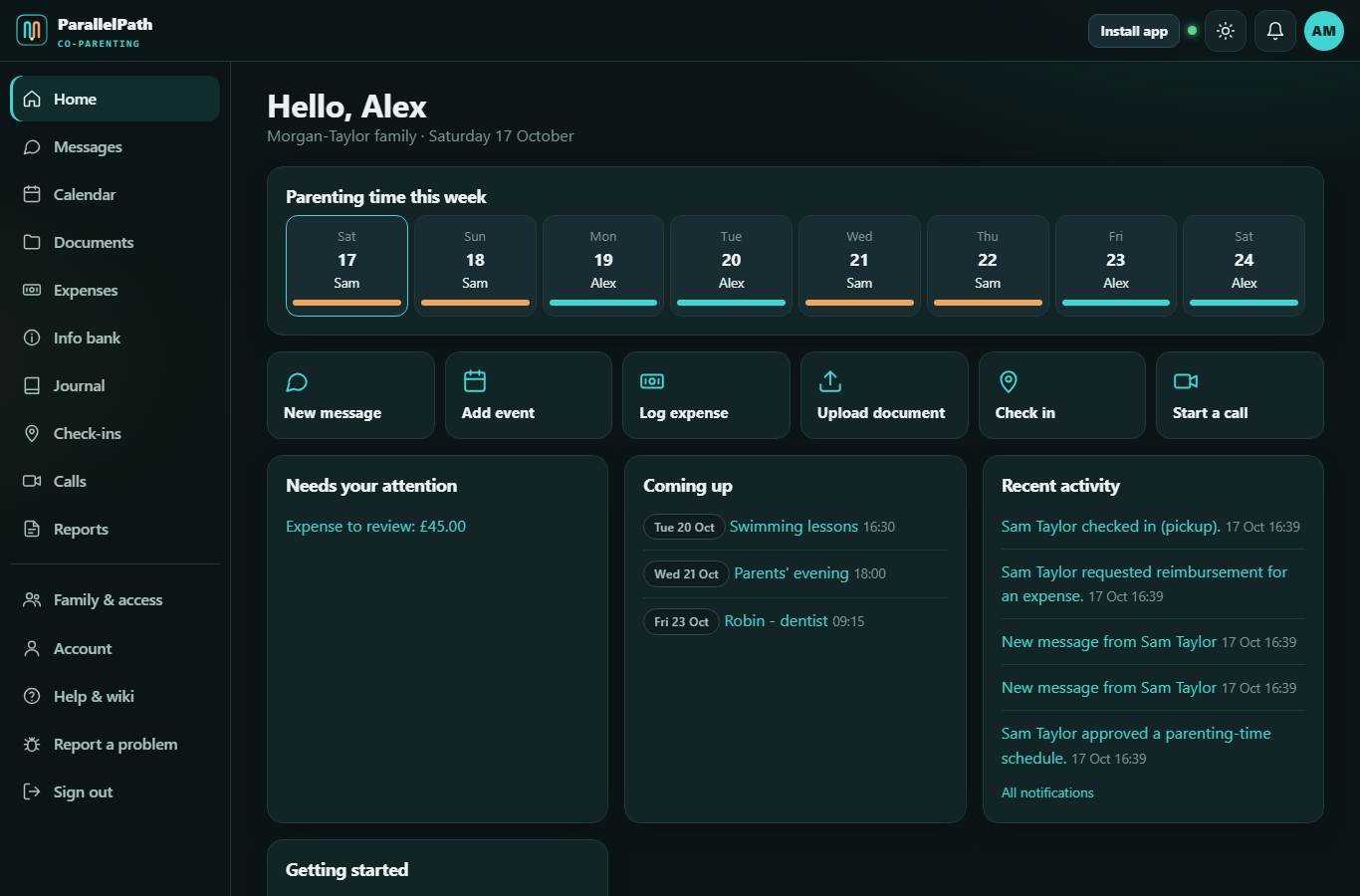
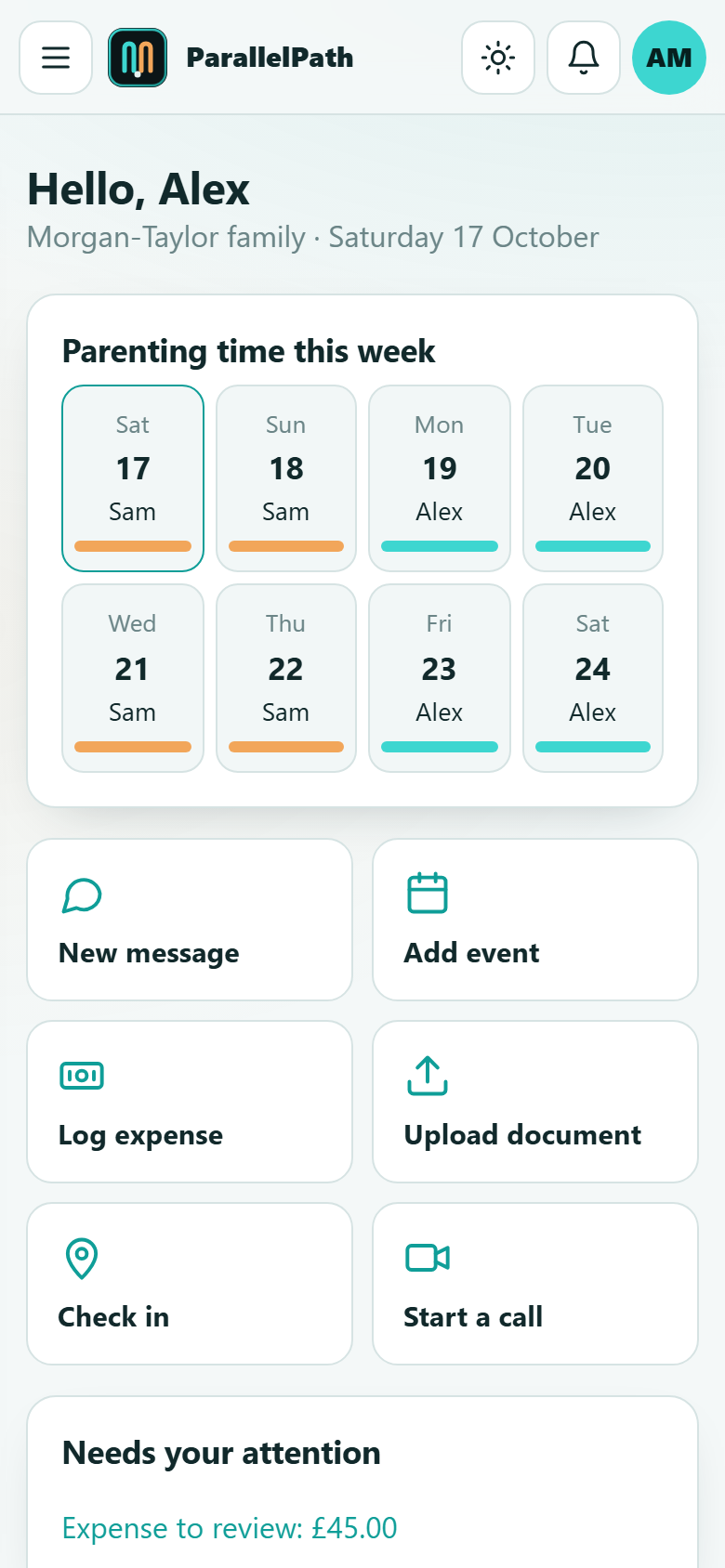
The dashboard shows parenting time for the next week (coloured by parent), quick actions, anything waiting for you (unread messages, swap requests, expenses to review), what's coming up, and recent activity.
The bell at the top shows notifications. Notifications never contain message content - only that something happened.
3. Messages
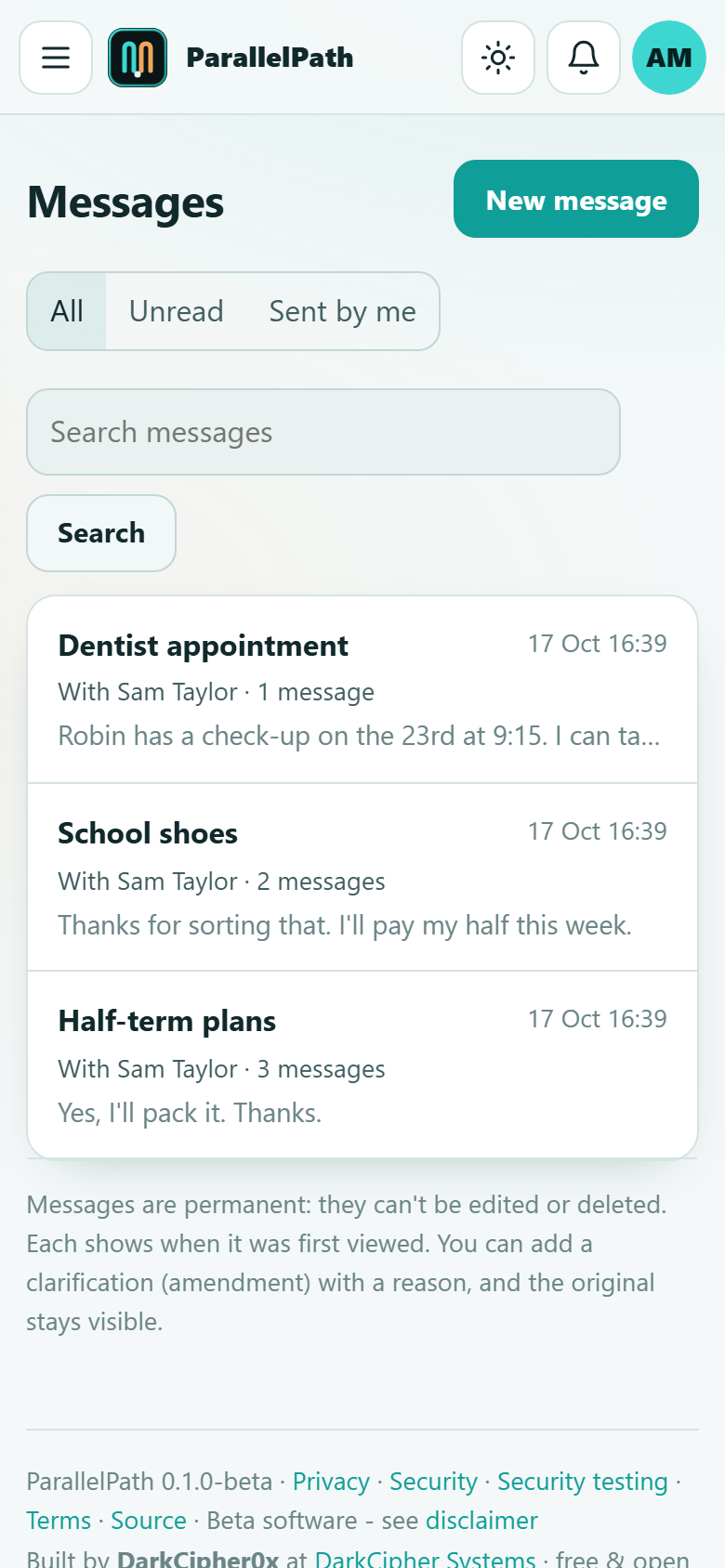
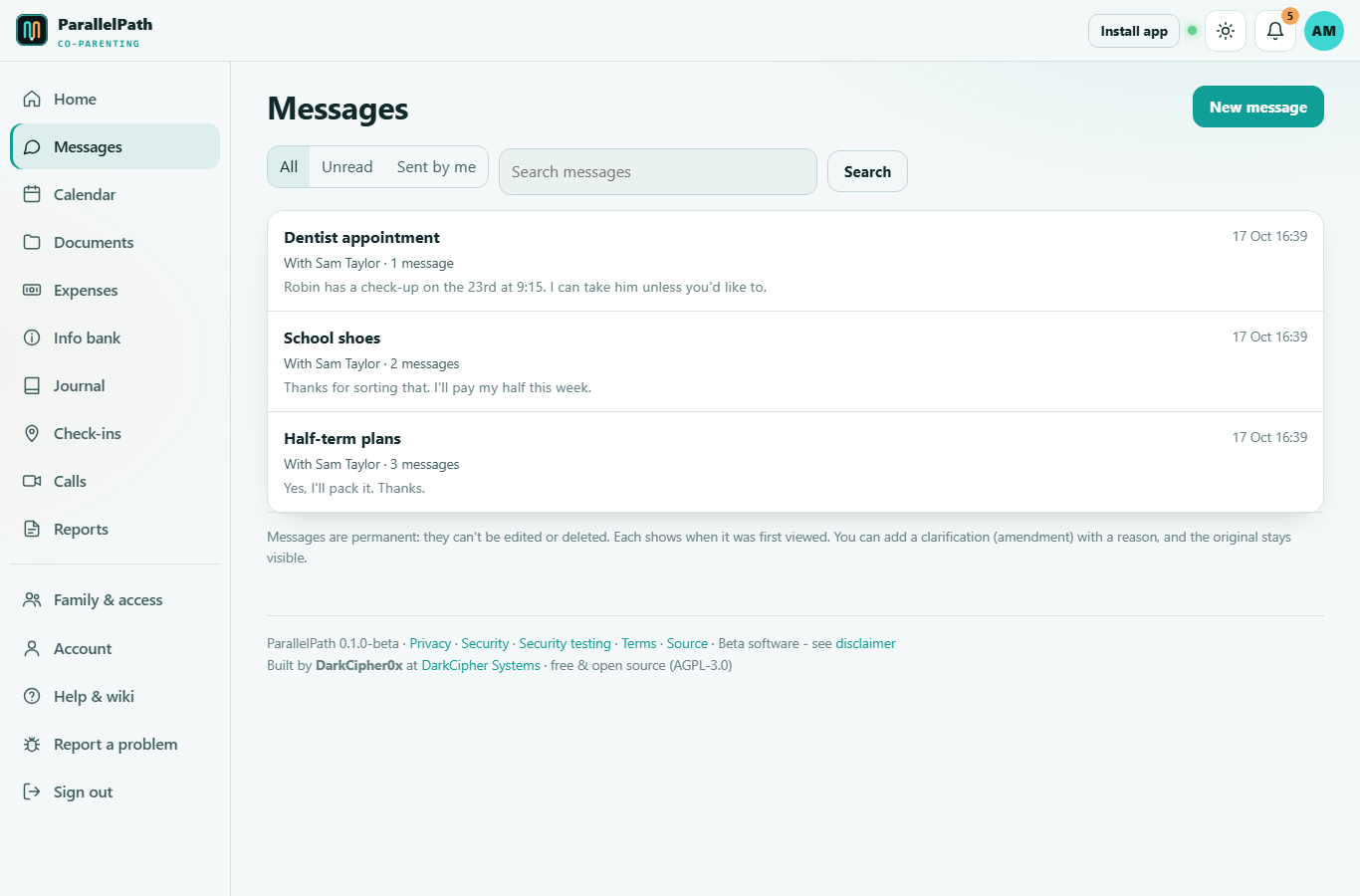 Your conversations. Bold dots mark unread threads.
- New message: choose who it's to, add a subject and write your message. Attachments are saved to shared documents too.
- Replies arrive live - no need to refresh.
- Read receipts: under every message you'll see "Viewed by ... at ..." - the first time each person opened it - or "Not yet viewed".
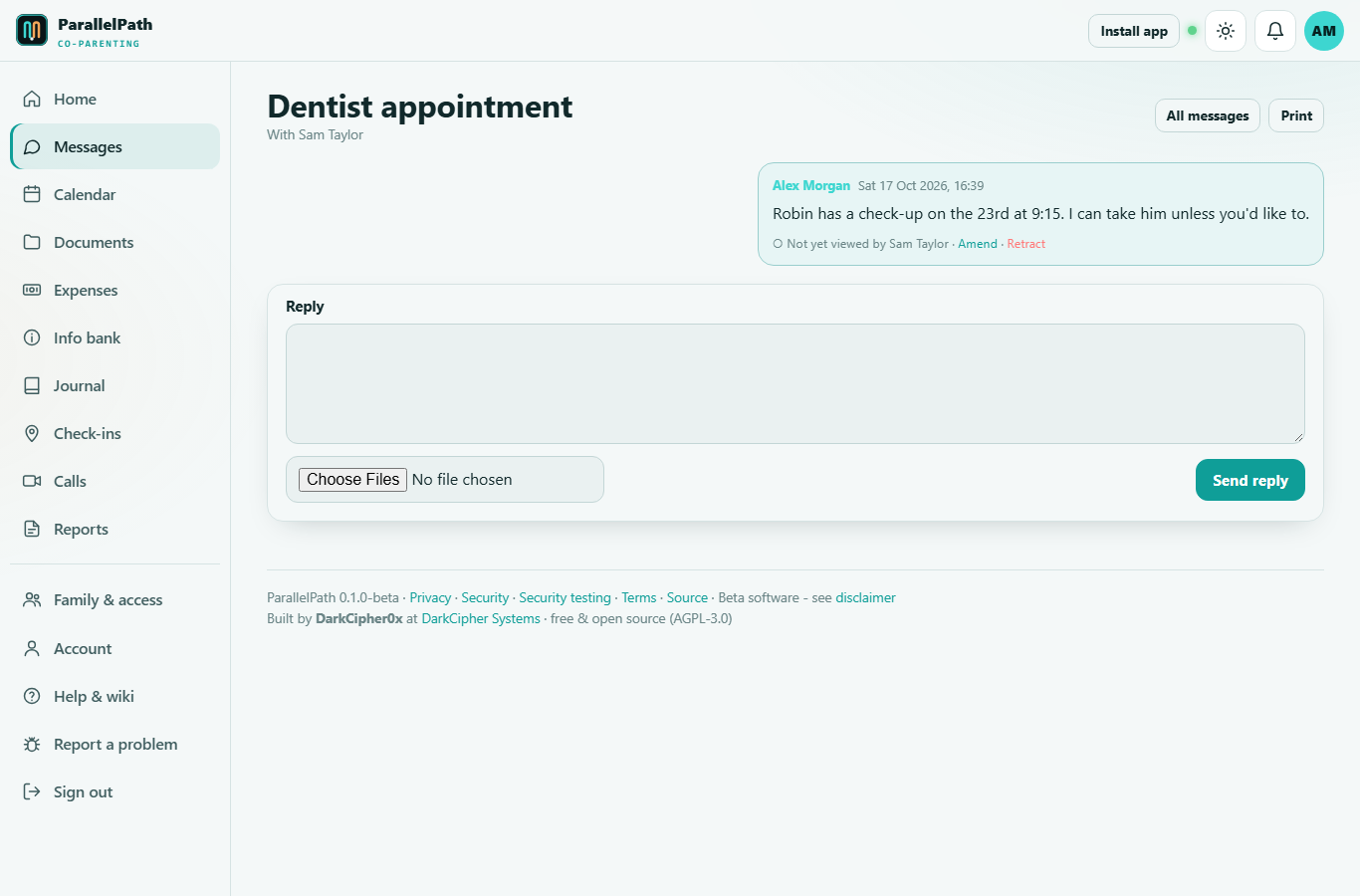 A conversation, showing read receipts and an amendment beneath the untouched original.
Messages are permanent
Sent messages cannot be edited or deleted by anyone - including the server administrator. This keeps the record trustworthy for both parents and for courts. If you made a mistake:
- Amend adds a clarification or corrected text under your message, with a reason.
- Retract marks your message as withdrawn, with a reason.
In both cases the original message stays visible to everyone and in every report.
Tone Check
Tone Check reads your draft as you type and points out wording that may come across as hostile, blaming, sarcastic, demanding or threatening. It highlights the phrases and suggests a calmer version you can use with one click.
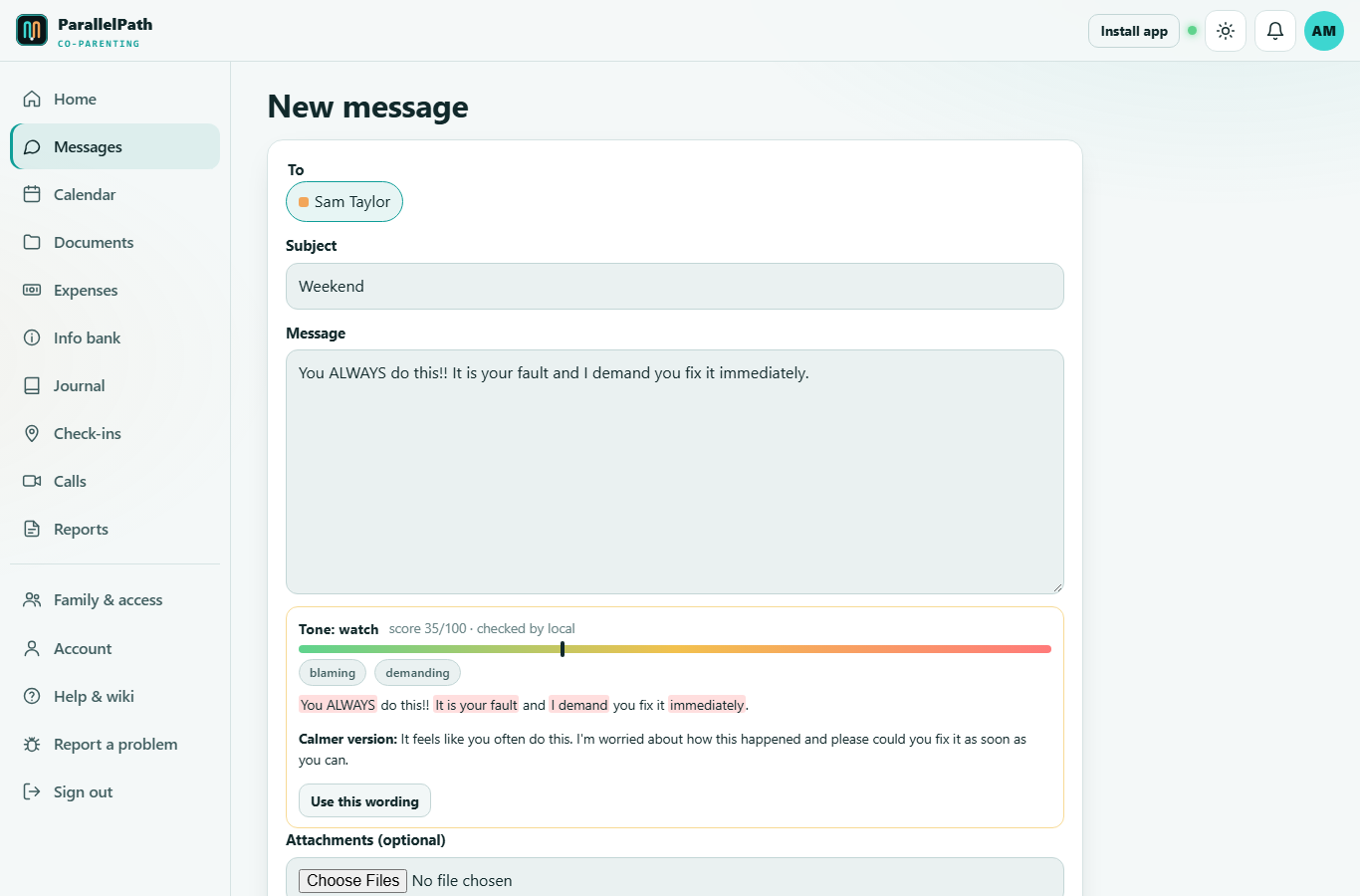 Tone Check highlighting phrases and offering a calmer wording.
- It's advice only - you can always send anyway. If you send a message Tone Check rated heated or hostile, that's noted on the message.
- Turn it off under Account > Profile if you prefer.
- By default it runs entirely on this server. If your administrator has connected an AI service, your Account page tells you which one, and you can opt out.
4. Calendar & parenting time
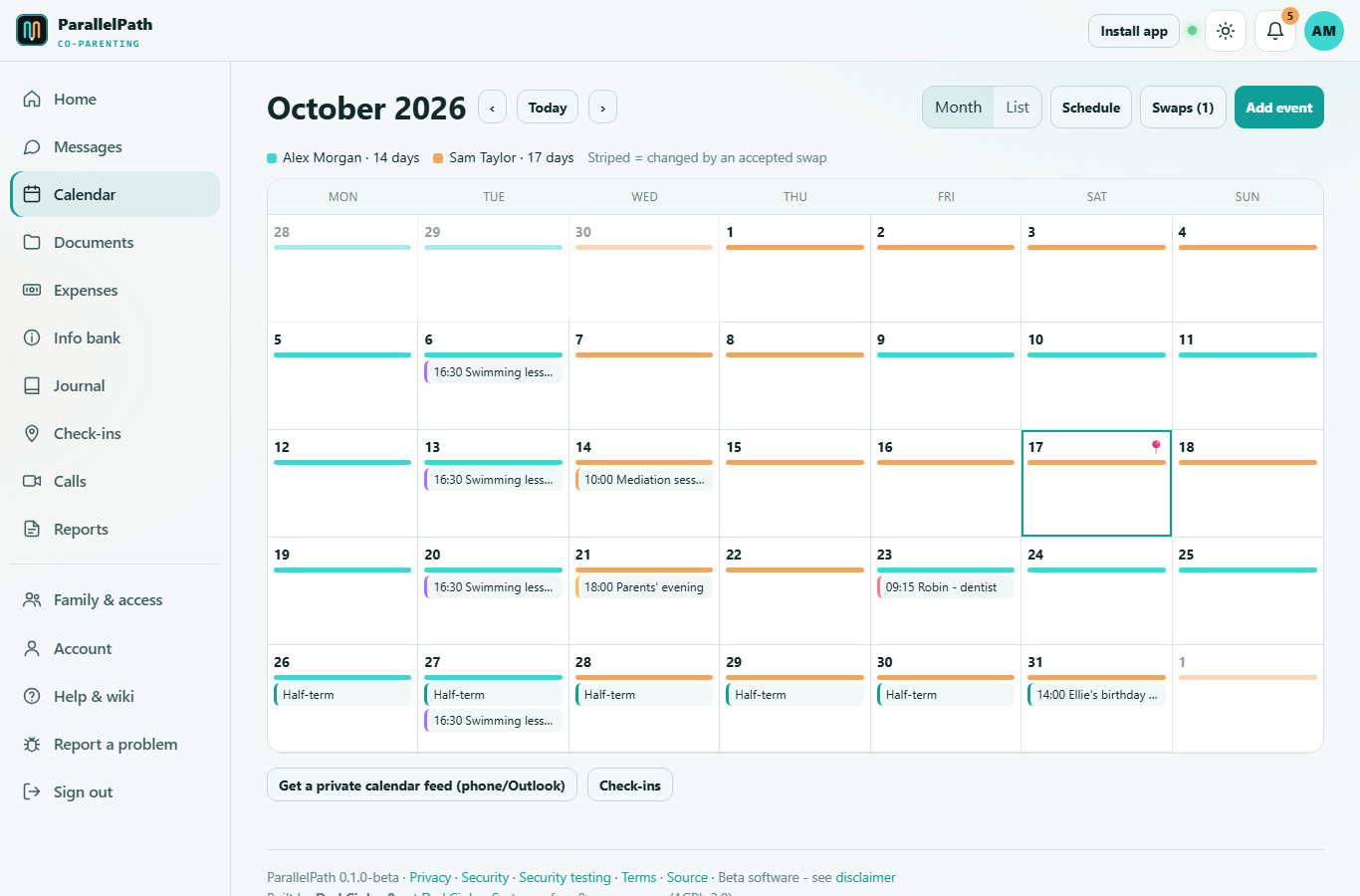 Month view. The coloured bar on each day shows who has the children; events show below.
- Month and List views; use the arrows or Today to move around.
- The legend shows each parent's colour and the number of days with each parent this month.
- Add event: title, category (school, medical, activity, holiday, court...), times or all-day, location, notes, the children involved, and whether it repeats (daily, weekly, every two weeks, monthly). Mark an event Only me to keep it private.
- Changing or deleting an event asks for a reason, kept in the event's edit history.
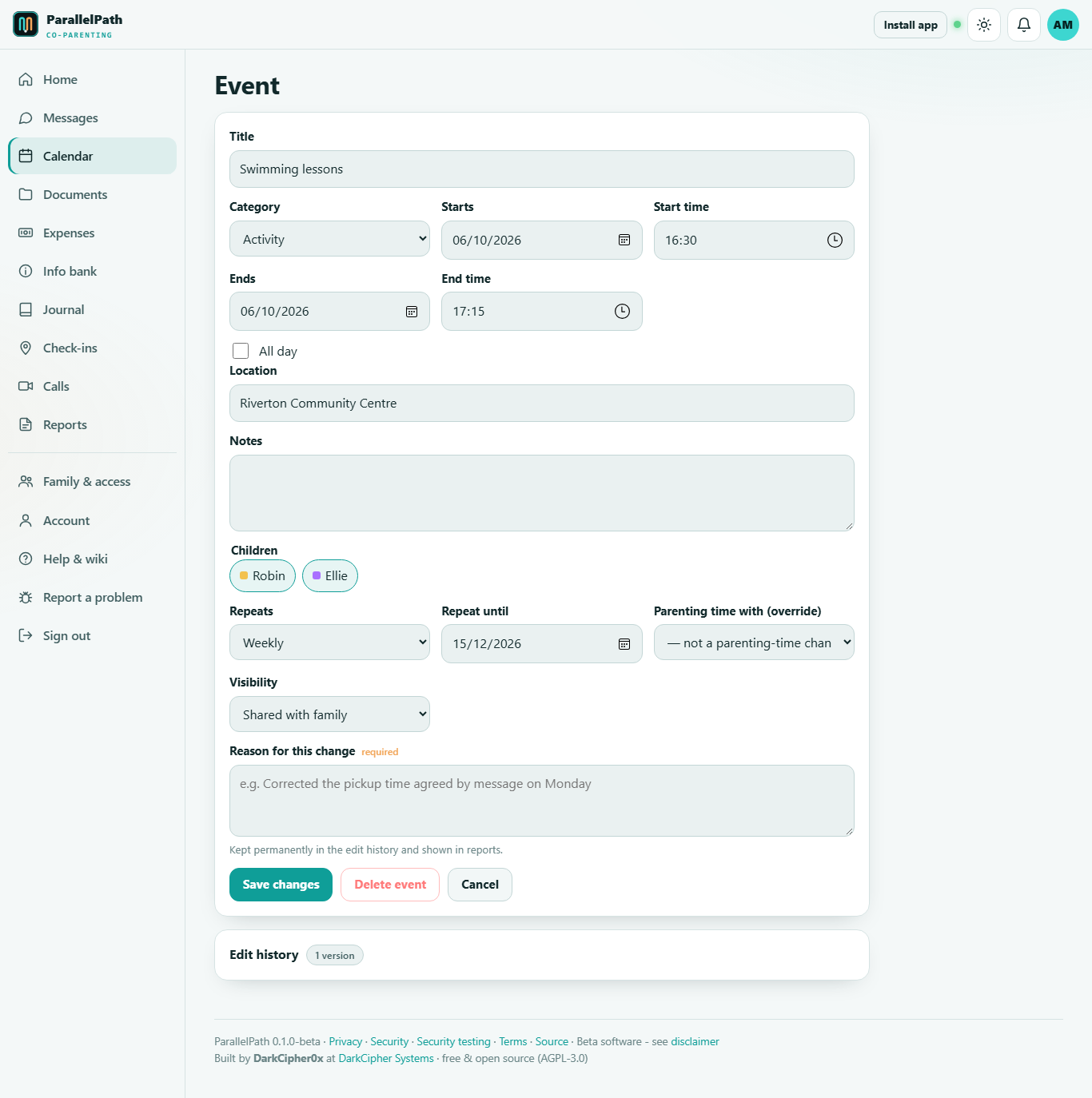 Editing an event: every change is versioned with who, when and why.
Parenting-time schedule
Under Calendar > Schedule a parent can propose a repeating pattern:
| Template | Pattern |
|---|---|
| Alternating weeks | A 7 days, B 7 days |
| 2-2-3 | A2, B2, A3, B2, A2, B3 (14-day cycle) |
| 2-2-5-5 | A2, B2, A5, B5 |
| 3-4-4-3 | A3, B4, A4, B3 |
| Every other weekend | A5, B2, A7 (start on a Monday) |
| Weekdays / weekends | A5, B2 |
| Custom | anything, e.g. A3,B4,A4,B3 |
The other parent must approve it. Approving a new schedule ends the previous one the day before the new one starts.
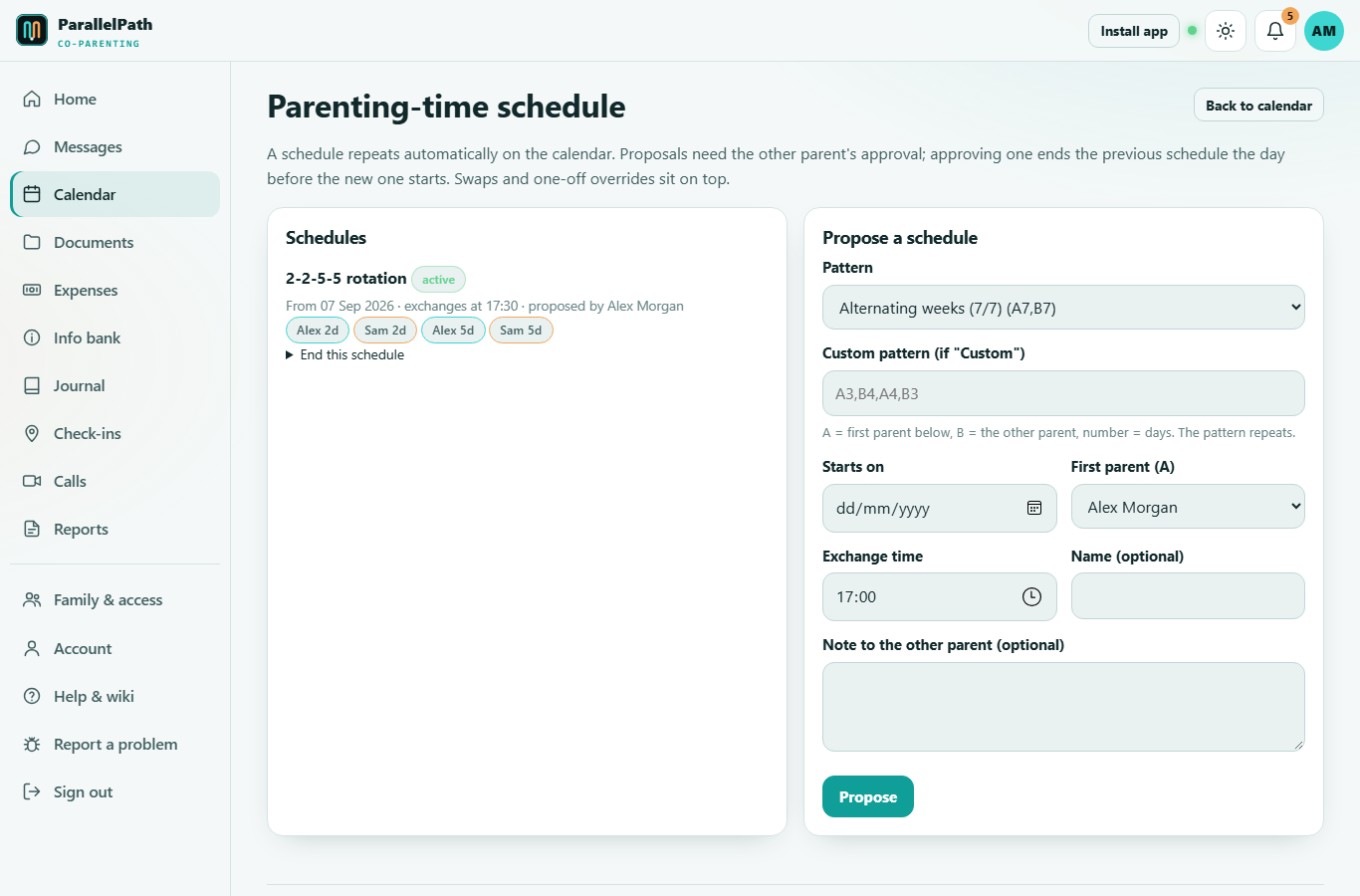
Swap and trade requests
Under Calendar > Swaps you can ask to swap days (give some, take others) or give days to the other parent. They accept or decline, optionally with a reply. Accepted swaps appear on the calendar as striped days.
Overrides
For one-off arrangements (e.g. holidays), add an event and set Parenting time with to the right parent.
Your phone's calendar
Account > Calendar feed creates a private, read-only feed link you can subscribe to in Google Calendar, Apple Calendar or Outlook. Anyone with the link can see your calendar, so revoke it if it's ever shared.
Check-ins
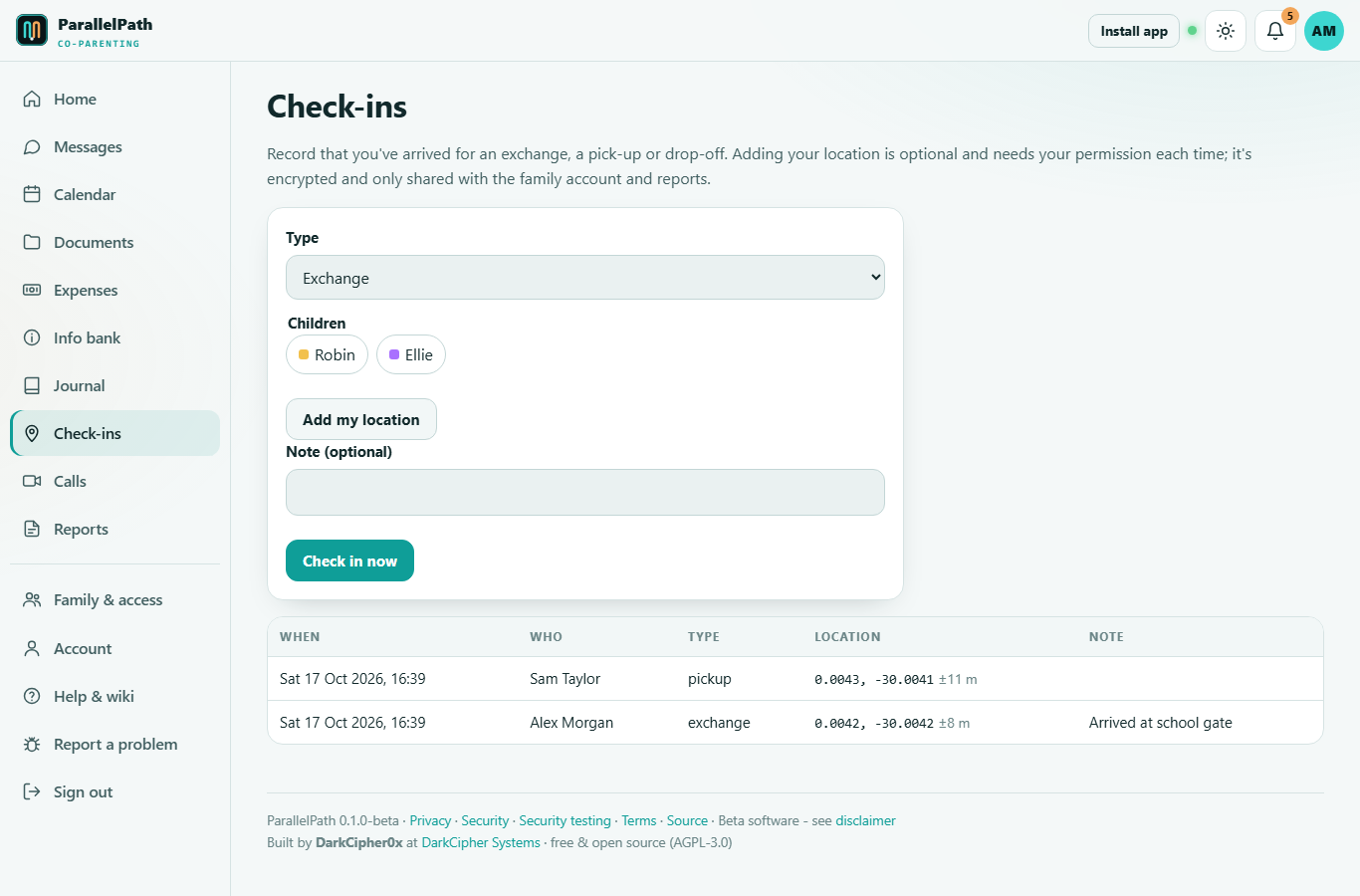
Check-ins record that you arrived for an exchange, pick-up or drop-off. You can add your location (your browser asks permission each time). Check-ins show on the calendar and in reports.
5. Documents
The document manager works like a file explorer on a computer.
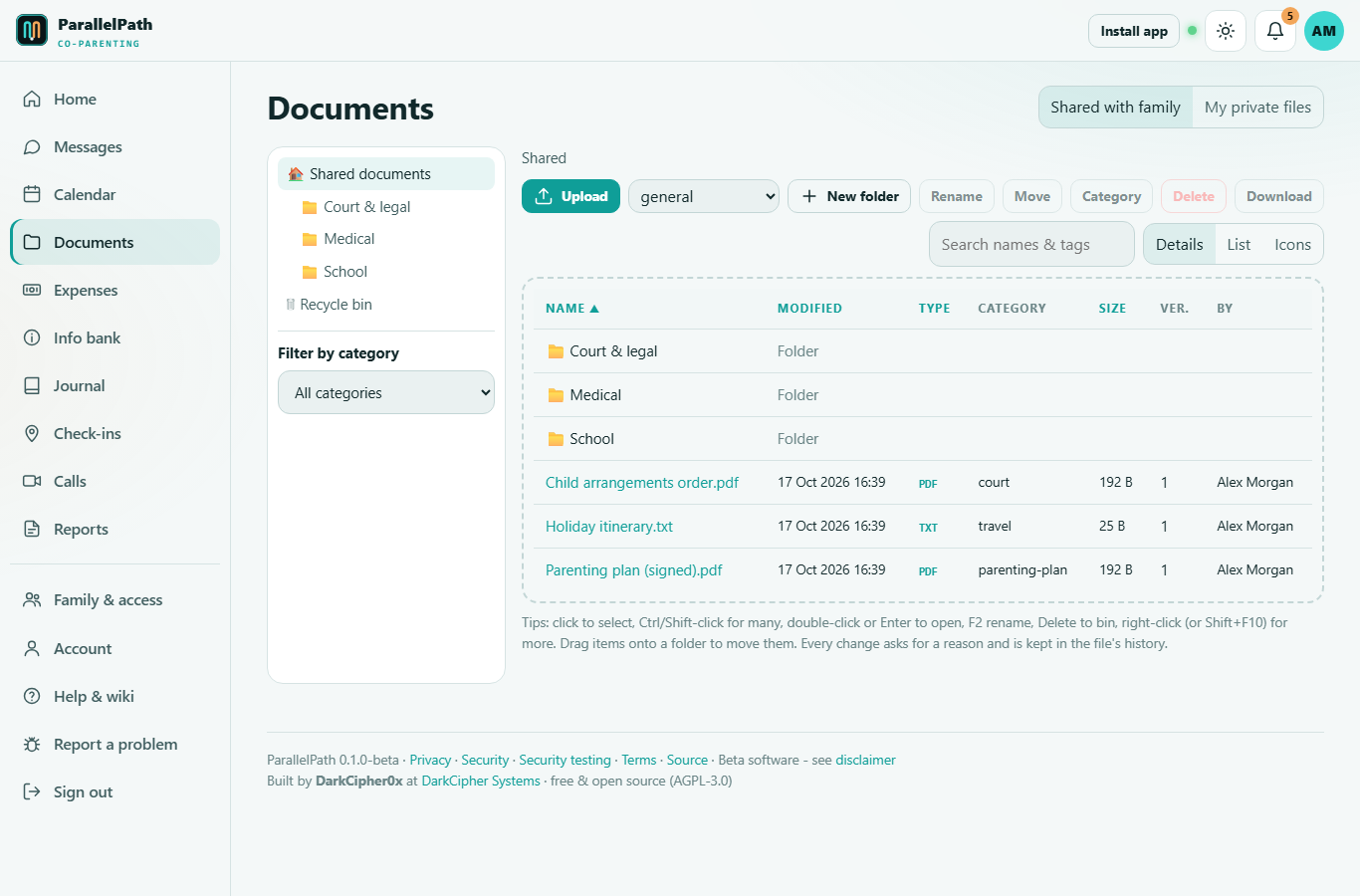 Details view with the folder tree on the left.
- Shared with family is visible to both parents (and professionals you allow). My private files is only ever visible to you.
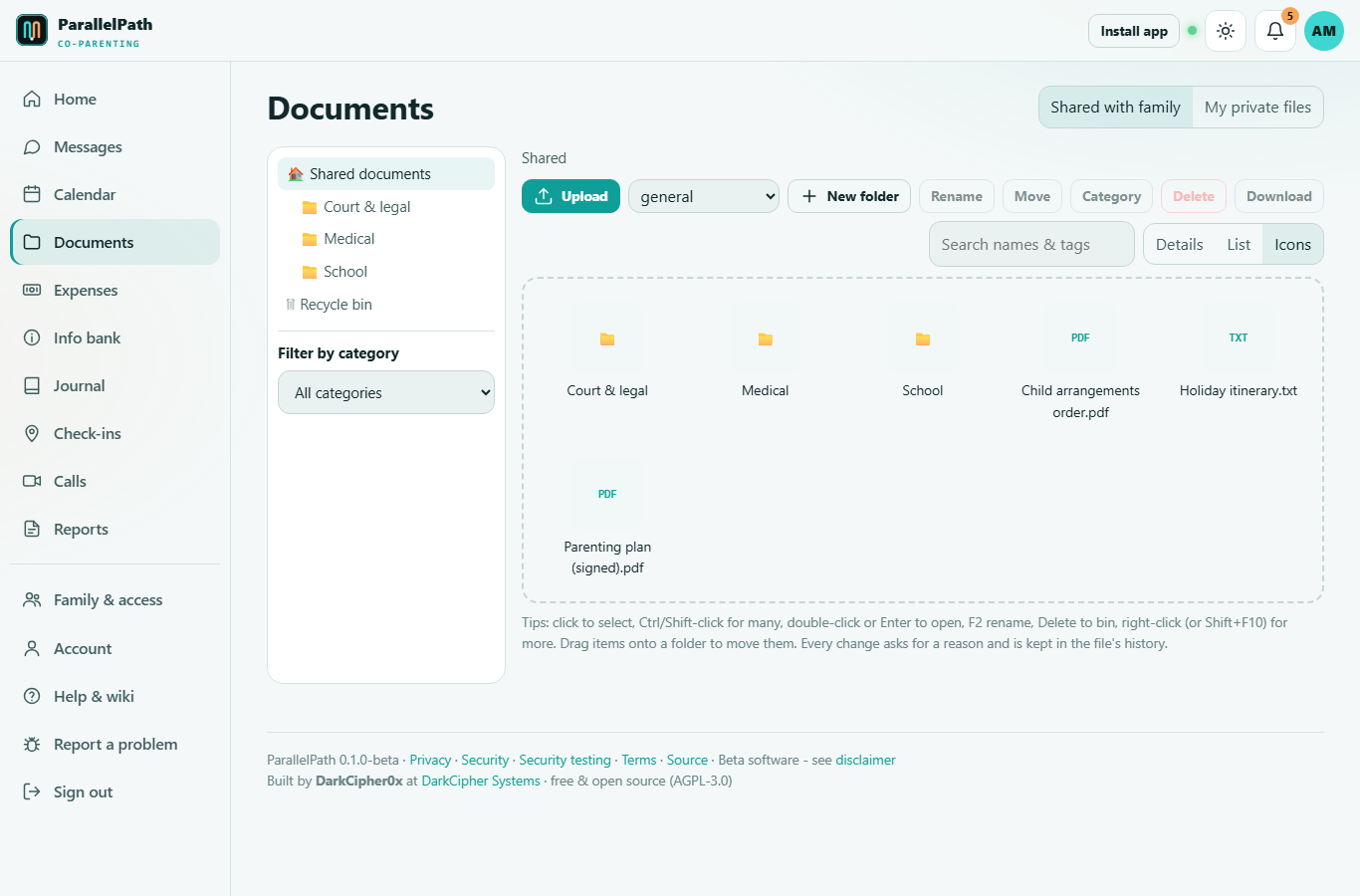
- Views: Details, List or Icons (with image thumbnails). Click a column heading to sort.
- Upload: use Upload or simply drag files onto the page. Choose a category first if you like.
- Select with a click, Ctrl/Cmd-click for several, Shift-click for a range, Ctrl+A for all.
- Keyboard: arrow keys move, Enter opens, Space selects, F2 renames, Delete moves to the recycle bin, Shift+F10 opens the menu.
- Right-click for: open, download, rename, move, category & tags, delete, copy to your private (or shared) space, history.
- Drag items onto a folder (in the list or the tree) to move them.
- Every change - rename, move, re-categorise, new version, delete, restore - asks for a reason and is kept in the file's history. Deleted items go to the Recycle bin and can be restored.
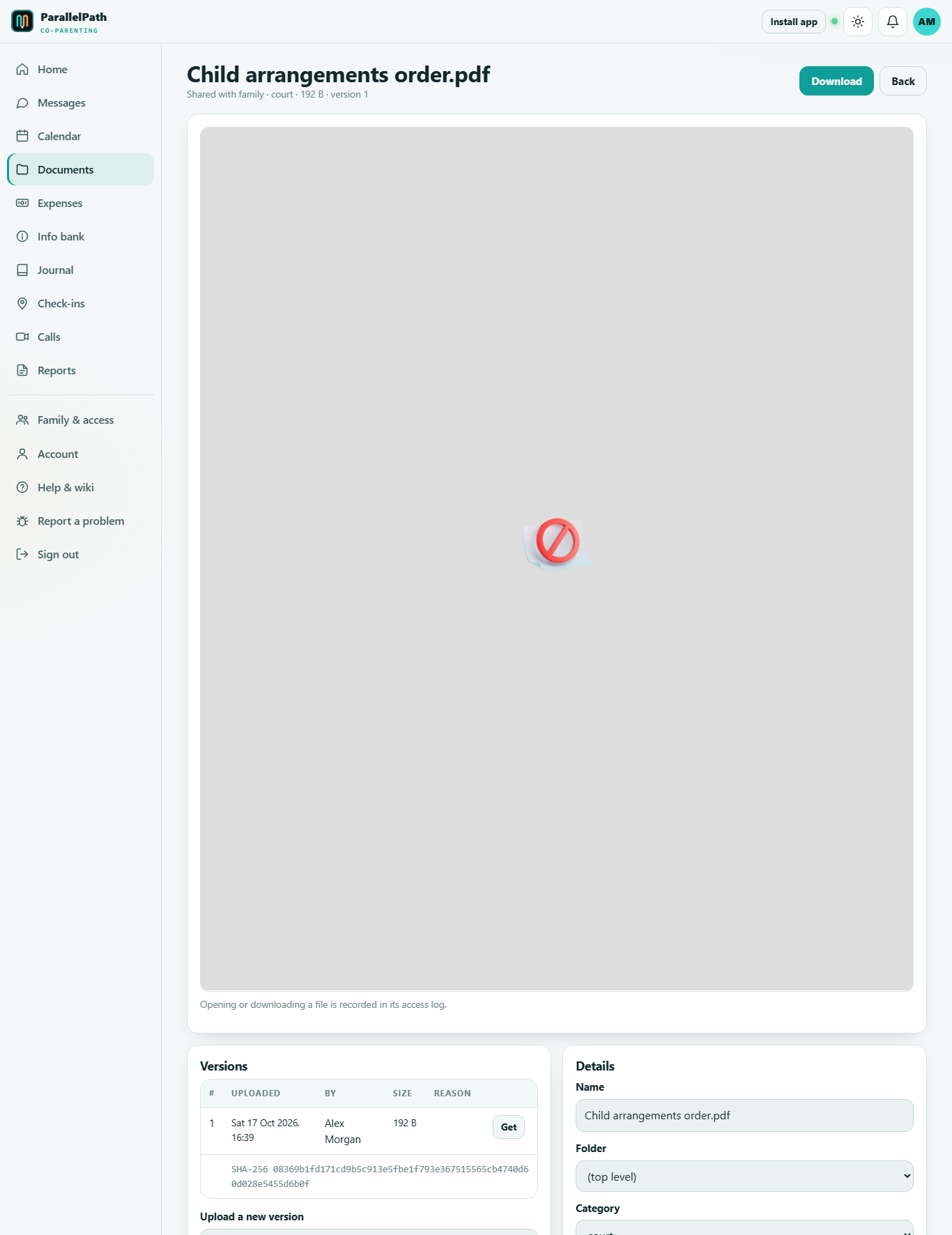
Open a file to preview it (images, PDFs, audio, video, text), download any previous version, upload a new version, and see its access log - who viewed or downloaded it and when.
6. Expenses
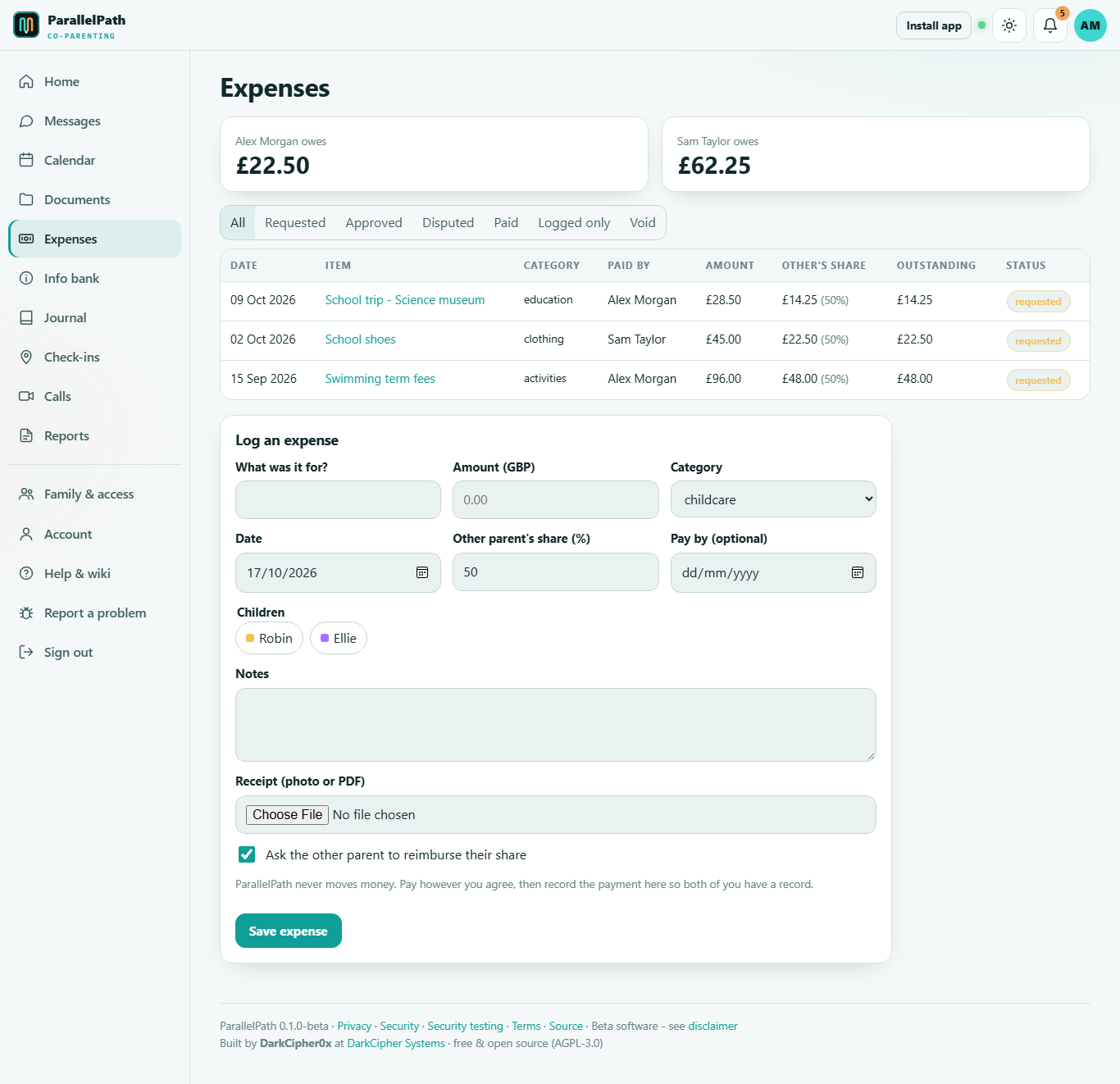
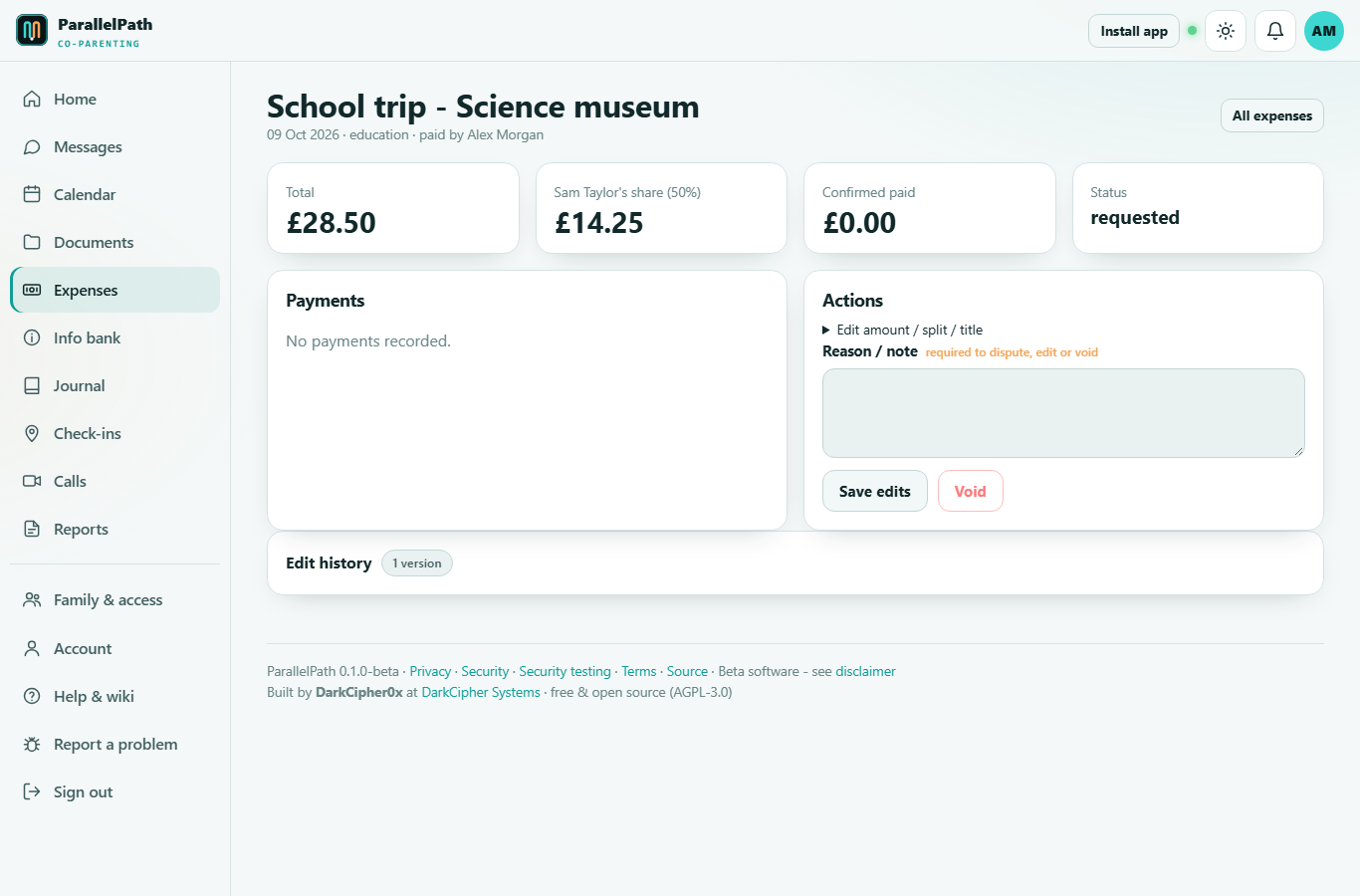
- Log an expense: what it was for, amount, category, date, the other parent's share (e.g. 50%), and a photo of the receipt.
- Tick Ask the other parent to reimburse their share to send a request.
- The other parent can Approve or Dispute (with a reason).
- They Record payment once they've paid (by bank transfer, cash, etc.).
- You Confirm received - the expense is then marked paid.
ParallelPath never moves money; it keeps an agreed record of who paid what. The top of the page shows how much each parent currently owes.
7. Info bank
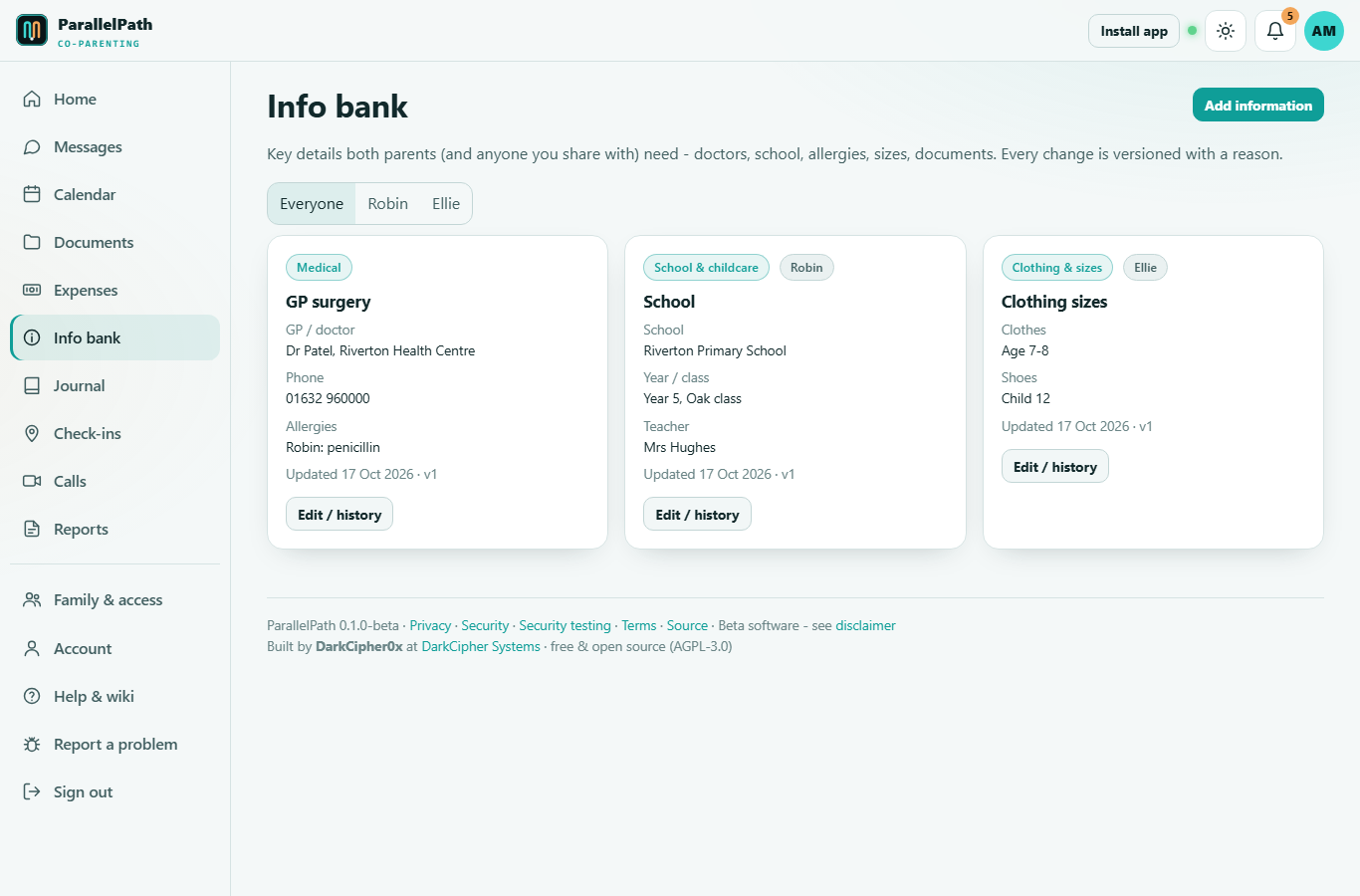
Keep the details both homes need: doctor, dentist, school, insurance, emergency contacts, activities, clothing sizes, identity documents, routines and legal information. Each card can be about one child or everyone, shared or private. Every change keeps the previous version with a reason.
8. Journal
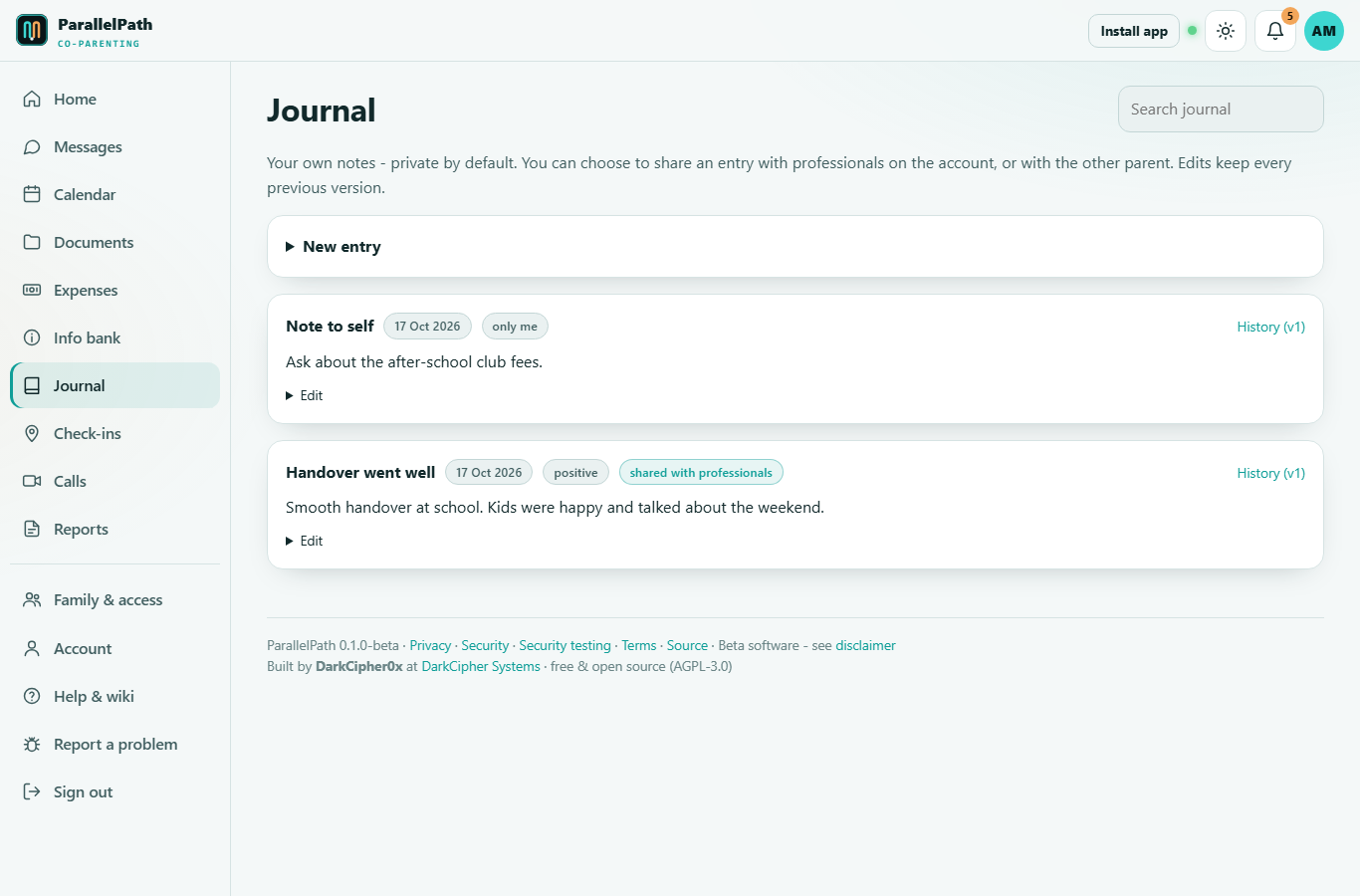
Your own dated notes with an optional mood. Each entry is Only me by default; you can share an entry with professionals on the account, or with the other parent and professionals. Edits keep every previous version.
9. Calls
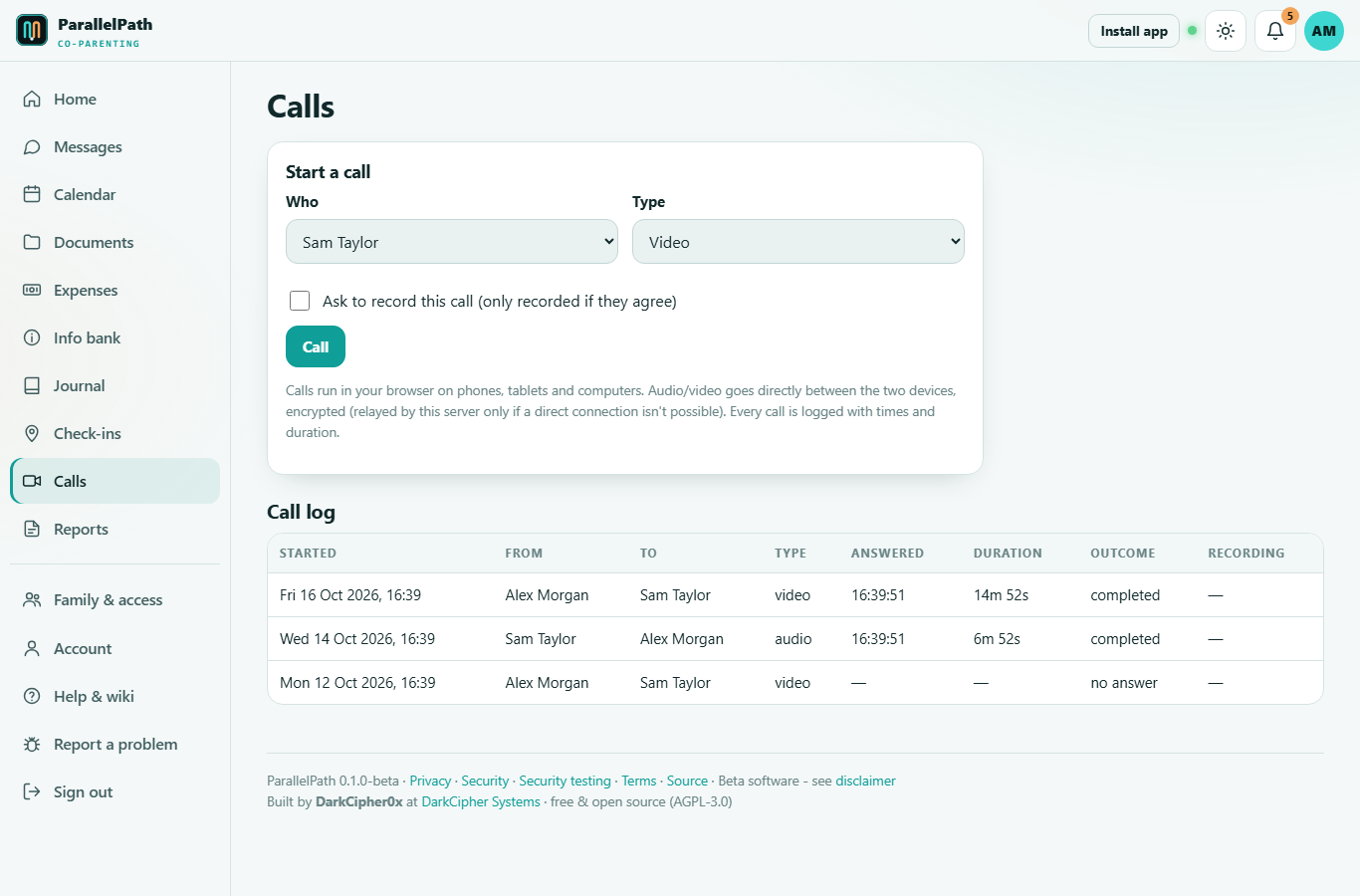
- Choose who to call and Video or Voice only, then Call. The other person sees an incoming-call screen wherever they're signed in.
- Calls work in modern browsers on phones, tablets and computers. Allow camera/microphone when asked.
- Video and audio go directly between the two devices, encrypted. The server only helps connect you (and relays the encrypted stream if a direct connection isn't possible).
- Every call is in the call log: who called whom, when, whether it was answered, and how long it lasted.
- Recording (if your administrator allows it) only happens when the caller asks and the other person ticks I agree. Recordings are encrypted and saved to shared documents.
- You can refuse someone's calls under Family & access > Your restrictions.
10. Reports
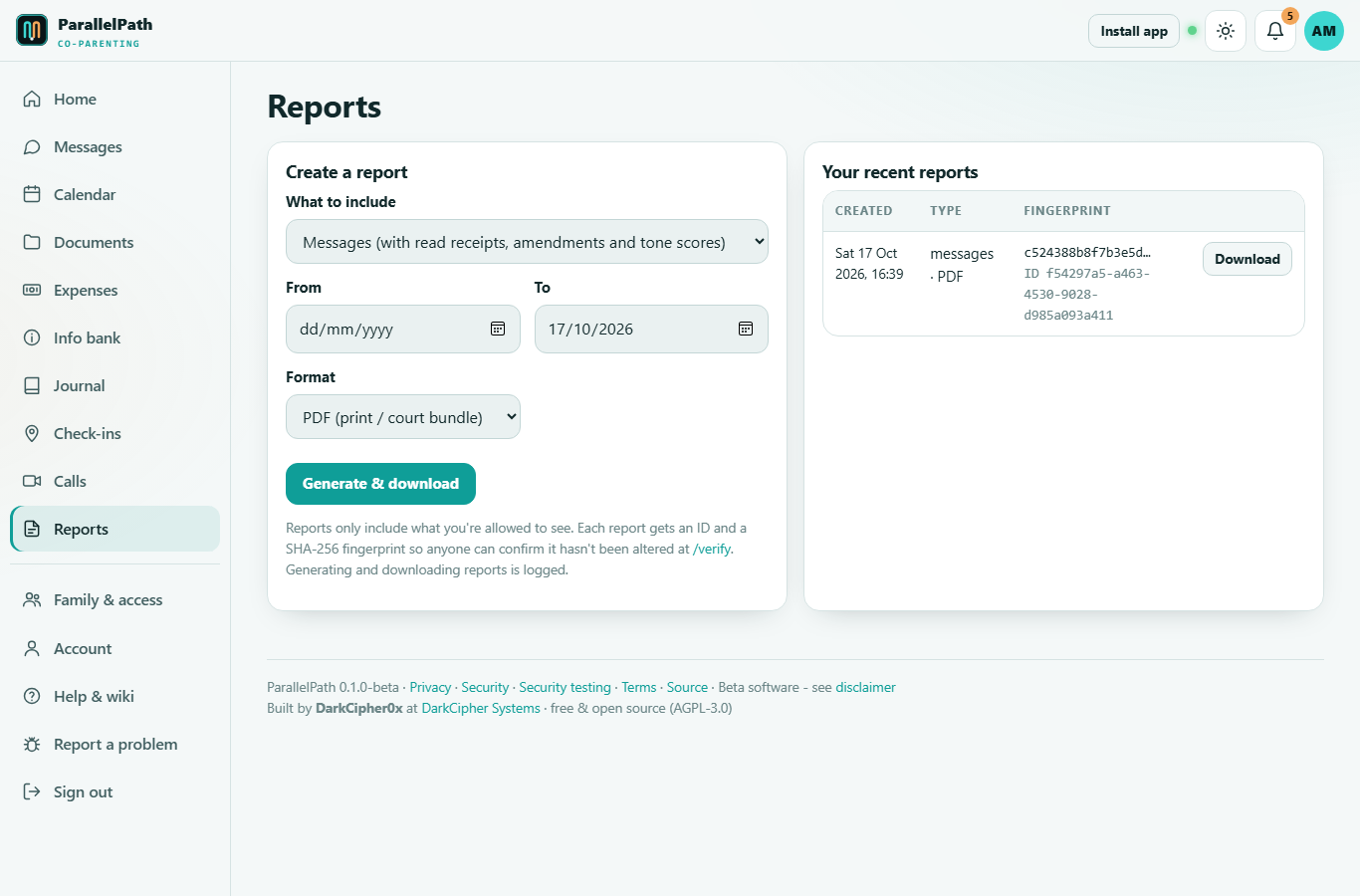
Create a report of messages, calendar & parenting time, swaps, expenses, journal, check-ins, calls, info bank, document activity, your sign-in history, the family audit trail - or everything - for any date range, as PDF, CSV or JSON.
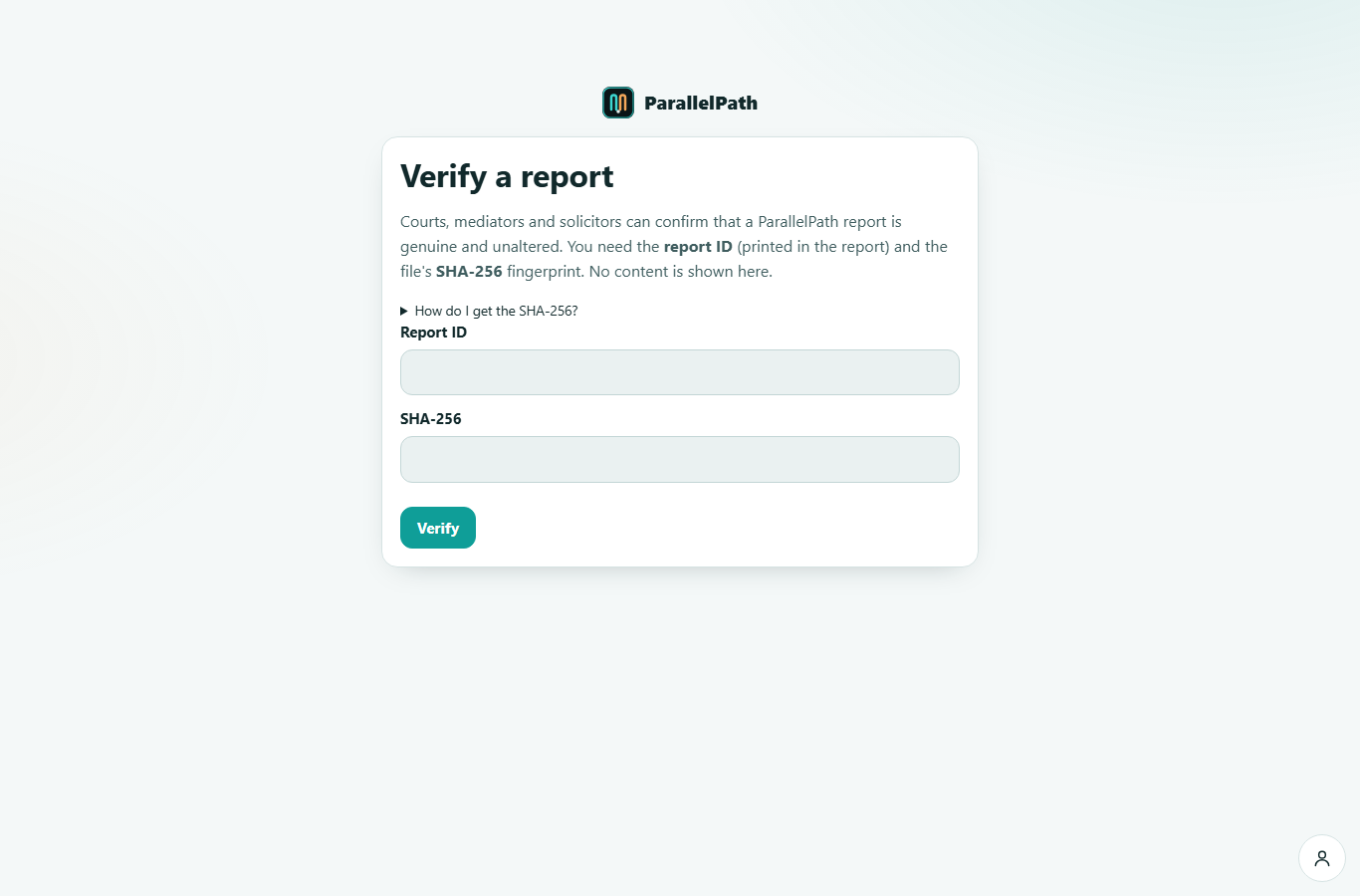
Each report has an ID and a SHA-256 fingerprint. Anyone (a court, mediator or solicitor) can confirm a report is genuine and unaltered at /verify - without seeing its content.
11. People, roles and access
| Role | What they can do |
|---|---|
| Parent (2 per family) | Everything. Equal access; neither parent can remove the other. |
| Family member (step-parent, grandparent...) | What the parents allow: message the parents, see the calendar, see the info bank. |
| Child | See the calendar and message their parents. |
| Professional (mediator, solicitor, guardian, therapist) | Read-only access to only the areas a parent chose, optionally time-limited. Their viewing is recorded in the audit trail. |
Both parents are notified about every invitation and access change.
Muting and blocking
Under Family & access > Your restrictions you control your own experience:
- Mute - stop notifications from someone.
- Refuse calls - their calls to you are blocked.
- Block - no contact at all (family members/third parties only).
A co-parent can't be fully blocked, because both parents must keep access to the shared record. If there's a court order restricting contact, ask your administrator.
12. Your account
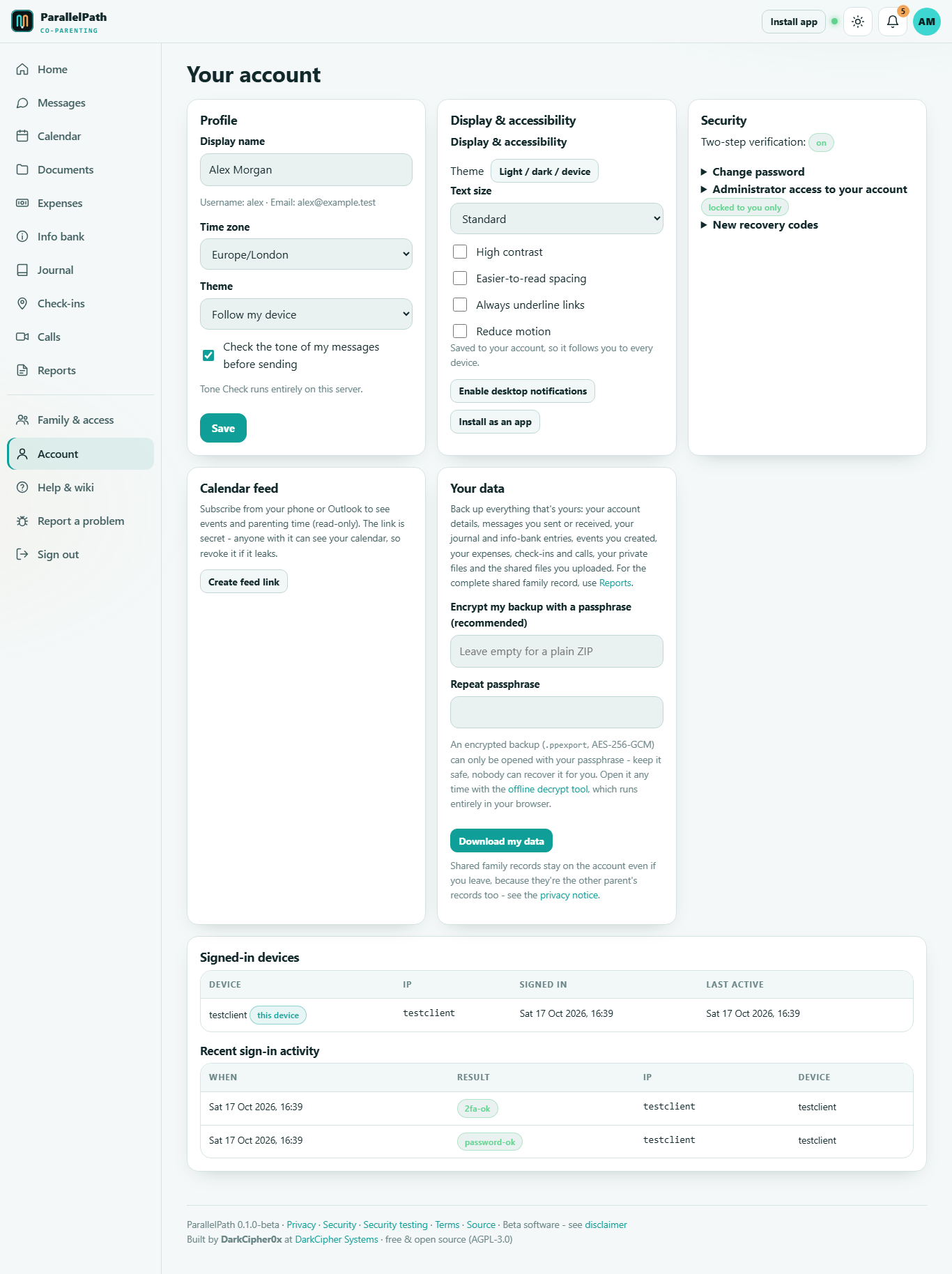
- Change your name, time zone and theme (light, dark or follow your device).
- Display & accessibility: text size, high contrast, easier-to-read spacing, underlined links, reduced motion. See Accessibility.
- Change your password, generate new recovery codes.
- Administrator access to your account: off by default (recommended) - the server administrator can't reset your two-step verification or get a password-reset link for you. Turn it on only if you'd like their help if you ever lose both your password and recovery codes. Every admin action on your account is listed here with their reason, and you're notified.
- See every signed-in device and recent sign-in attempts, and sign other devices out.
- Your data - back it up yourself: download everything that's yours (account details, messages you sent or received, your journal and info-bank entries, events you created, your expenses, check-ins and calls, your private files and the shared files you uploaded). Add a passphrase to get an encrypted
.ppexportfile instead of a plain ZIP, so the copy on your device is encrypted too. Open it any time at /decrypt-export - it runs in your browser and nothing is uploaded.
The server administrator can't see your messages, files, journal or personal details, and can't open backups. See Security.
13. Getting help
Use Report a problem in the menu to send a message to your server's administrator. Please don't include private family details in it.
Light, dark and mobile
ParallelPath follows your device's light/dark setting by default; use the sun icon at the top to switch. It's fully usable on phones.